

The short answer
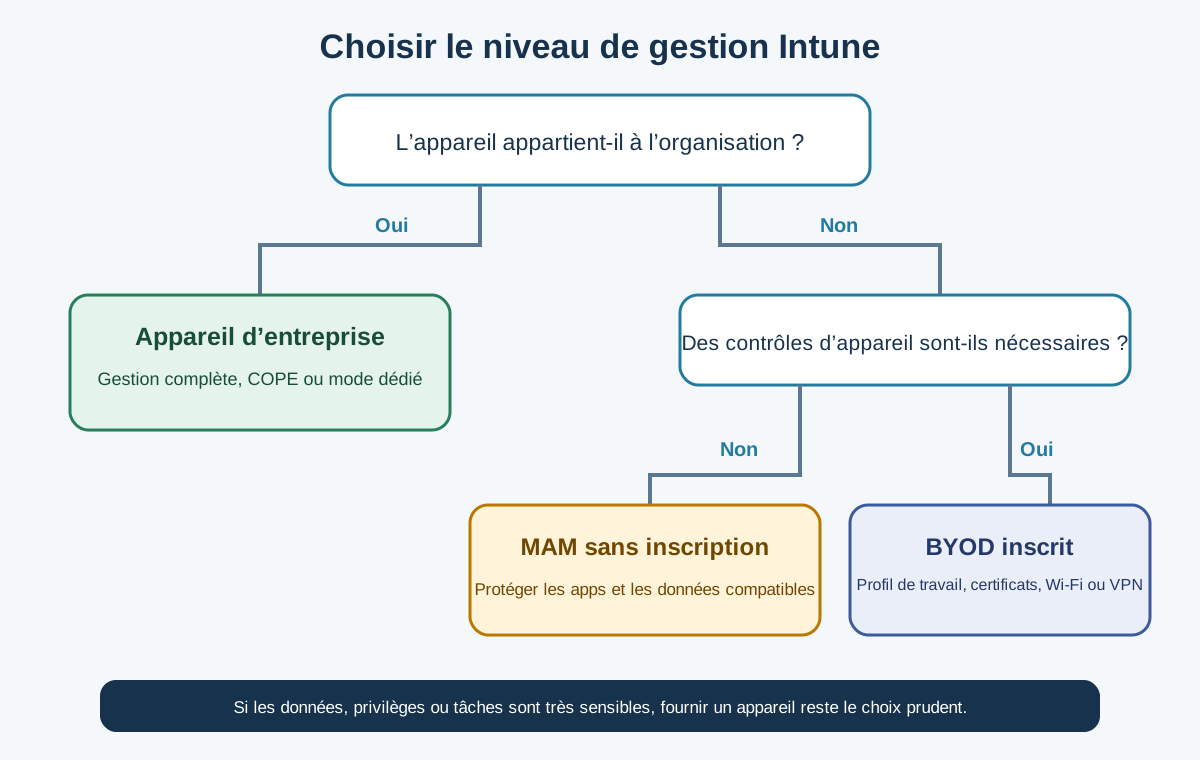
With Intune, generally choose app protection without enrolment for mobile BYOD limited to Outlook, Teams and OneDrive; an enrolled work profile to push certificates, Wi-Fi, VPN or apps; and a fully managed company device for sensitive data, shared workstations, field roles or full support. The best policy can combine models by risk profile.
- BYOD does not mean “a device without rules”: access must remain conditional and documented.
- MAM protects data in compatible applications without managing the whole device.
- Personal enrolment adds device controls but requires clear employee information.
- A company device simplifies standardisation, deployment, support, inventory and end of lifecycle.
- High-risk profiles or shared use often justify organisation-provided equipment.
Four Intune models to distinguish before discussing BYOD
The useful decision goes beyond “personal” versus “professional”: it separates unmanaged access, MAM without enrolment, personal enrolment and organisation-owned device management. These models differ in visibility, controls and experience.
1. Unmanaged personal device
The user accesses resources through a browser or application without an Intune policy. This can suit public resources or very limited needs, but provides no coherent mechanism for data separation, minimum versions, removing business information or blocking operations. MFA remains necessary but does not control what happens to data after sign-in.
2. MAM without device enrolment
Mobile Application Management (MAM) applies policies to applications and business data without enrolling the device in full management. Microsoft documents this as MAM for unenrolled devices. With compatible applications, an organisation can require an app passcode, limit transfers to personal apps, govern local storage and selectively remove business data.
3. Enrolled personal device
BYOD enrolment adds device management or a separate workspace. Android Enterprise can create a work profile; Apple offers enrolment modes for user-owned devices; Windows, macOS and Linux have their own scenarios. This helps distribute certificates, Wi-Fi or VPN configurations, apps or check broader posture before access.
4. Company device
Organisation-purchased, prepared and managed equipment enables the strongest standardisation. Depending on platform, this uses Windows Autopilot, Apple Automated Device Enrollment or Android Enterprise fully managed, COPE or dedicated. The organisation can apply more policies, automate provisioning, maintain a fuller inventory and wipe or reassign according to lifecycle.
This control is preferable for primary workstations, sensitive data, regulated roles, privileged users, complex local apps, shared terminals or field devices. The GVISION page on Microsoft Intune deployment and management remains the commercial page; this guide helps choose the model before sizing the project.
BYOD, MAM, enrolment or company device: complete comparison
No model wins everywhere: management should remain proportionate to sensitivity, necessary functions and support responsibilities.
| Criterion | Unmanaged BYOD | MAM without enrolment | Enrolled BYOD | Company device |
|---|---|---|---|---|
| Scope | Identity and access only. | Compatible applications and business data. | Work profile or limited device controls. | Device, applications and configuration according to mode. |
| Benefit | Very little initial friction. | Good balance between protection and privacy. | Richer certificates, Wi-Fi, VPN and distribution. | Consistent standardisation, support and lifecycle. |
| Limitation | Limited control after authentication. | Depends on compatible applications and platforms. | More demanding consent, communication and support requirements. | Purchasing, logistics and private-use policies must be organised. |
| Data control | Varies by application. | Transfer and storage restrictions, and selective removal. | Separation of work data with targeted management. | The most extensive controls permitted by the platform. |
| Device compliance | No. | Application signals, not full management. | Yes, within the limits of personal mode. | Yes, with a more complete configuration. |
| Support | Difficult to define. | Support for managed applications. | Support shared between the user and IT. | Clearer responsibility and procedure. |
| Use case | Exceptional access to low-sensitivity data. | Mobile email and collaboration. | Mobile use requiring certificates or a separate profile. | Primary, field, shared, privileged or sensitive workstation. |
| Costs | To be checked against existing Microsoft licences, devices, support, logistics and applications; no generic amount is used here. | |||
| Best choice according to need | Documented exception. | Limited mobile BYOD. | BYOD with device-level requirements. | High control or support requirements, or high risk. |
Decide by risk rather than technology preference
The best starting point is a matrix combining data sensitivity, action type, exposure, privileges, offline requirements and support capacity. Device ownership then follows from that requirement.
Start with the data. Occasionally viewing internal announcements does not carry the same risk as medical records, administrator access, technical plans, school information, a client portfolio or a payment system. Also consider what users can do: read, edit, download, export, print, share or synchronise in bulk. Simple access can become a full data extraction if the application allows it.
Platform differences change the choice
Never automatically apply an iPhone policy to Android, Windows or macOS: each platform has its own separation, enrolment and management modes.
iOS and iPadOS
For limited mobile BYOD use, app protection policies can avoid full enrolment. If the organisation needs to manage more settings, Apple User Enrolment targets personal devices with stronger separation. An organisation-owned device integrated with Apple Business Manager or Apple School Manager and automatically enrolled allows supervision and more management commands. Always test the experience with the versions and applications actually in use.
Android Enterprise
The work profile on a personal device creates a visible separation between work and private applications. Microsoft states that personal apps and data remain in another part of the device and are not affected by Intune. For organisation-owned equipment, options include fully managed devices, corporate devices with a work profile and dedicated devices without a user. The Microsoft Android enrolment guide details the uses and prerequisites of these modes.
Windows
A personal Windows PC requires particular care. App protection policies without enrolment have a more limited scope on Windows than on iOS and Android; Microsoft documents Edge-related controls in preview for certain scenarios, among other things. A primary workstation running local applications, handling offline files or requiring encryption, patching and privilege policies often warrants an enrolled corporate device prepared with Autopilot.
BYOD, privacy and employment law in Belgium
A Belgian BYOD policy must protect organisational data while limiting and explaining the control exercised over the personal device. Technology does not remove obligations concerning information, proportionality and governance.
ArticleBelgian Data Protection Authority explains that employers must ensure the protection of work data on a personal device, but cannot indiscriminately monitor all information on it. It stresses the separation of work and personal data. This position favours the least intrusive level of control that addresses the actual risk.
Write a clear policy before enrolment. It should cover eligible people and devices, authorised applications, IT visibility, required settings, possible actions in case of loss, selective removal, contract termination, support, any costs, minimum updates, personal backups and the procedure for complaints or questions. Involve HR, security, the DPO, legal advisers and staff representatives where the context requires it.
Microsoft publishes a page on data visibility after enrolment : the organisation cannot see call or browsing history, messages, contacts, calendars, passwords, photos or documents created by the user. Other device attributes may be visible, with the scope depending on ownership and mode. Include this information in a notice specific to your configuration, rather than vaguely claiming that “IT cannot see anything”.
Connect Intune, Entra ID and Conditional Access without blocking the organisation
Intune defines protection or compliance; Microsoft Entra Conditional Access then decides whether the context meets the access conditions. Both components must be designed and tested together.
For a BYOD mobile device using MAM, a policy can require a protected application to access Microsoft 365. Microsoft states that app protection policies apply to compatible applications and that iOS and Android devices must first be registered in Entra ID for certain controls. For an enrolled device, another rule can require it to be marked as compliant. Conditions must account for relevant platforms, applications, accounts, locations and sign-in risks.
Avoid “all users, all applications, enabled immediately”. Microsoft recommends report-only mode before enabling Conditional Access policies. Create a representative pilot group, exclude emergency access accounts through a documented procedure and test both positive and negative scenarios: compliant device, outdated device, unsupported application, private browser, lost phone and a new system version.
The GVISION page on Microsoft Entra and access management complements the Intune approach: device posture only has value if it actually affects access, and an access rule must provide for recovery. Document dependencies between groups, device filters, compliance policies, application policies and Conditional Access rules so that you can understand a denial without guesswork.
Deploy a mixed policy in eight steps
A good rollout starts small, documents decisions and expands controls after validating the user experience and support.
- Inventory usage. List user groups, devices, platforms, applications, data, offline access and current exceptions.
- Classify risks. Assess sensitivity, privileges, volume, the impact of a breach, sector obligations and continuity requirements.
- Choose a model for each profile. Define MAM, personal enrolment, COPE or corporate devices; explicitly prohibit incompatible scenarios.
- Write the policy. Describe visibility, responsibilities, support, loss, removal, departure, updates and private-use rules.
- Configure the foundations. Create application, compliance and enrolment policies, groups, filters, restrictions and administrative roles.
- Test Conditional Access. Use report-only mode, validate emergency accounts and observe which applications are actually blocked.
- Run a pilot with real business teams. Include multiple platforms, profiles, network conditions and departure scenarios; measure tickets and enrolment time.
- Expand, then review. Deploy in waves, publish guides, train support staff and review thresholds with every major platform change.

Four Belgian scenarios translating policy into decisions
The models become clear when you start with actual work and the organisation's responsibility.
Practice with mobile staff
Partners and staff access calendars, email and Microsoft 365 files on their phones. MAM without enrolment can protect compatible applications and enable selective removal. Primary computers remain supplied and managed because they store records, run local software and need full support. Administrators receive a stricter profile and a dedicated device.
School or non-profit with volunteers and external contributors
Temporary staff need Teams and a document space without always warranting a supplied device. The organisation can restrict BYOD to protected applications, disable sensitive downloads and revoke access at the end of the assignment. Shared classroom, reception or administration workstations remain organisation-owned devices managed according to their shared use.
Multi-site group and field teams
Corporate smartphones with a work profile or full management make it easier to distribute applications, certificates, Wi-Fi and VPN settings. MAM may suffice for an employee who only checks a notification on a private device. Dedicated inventory or signature devices should use an appropriate userless mode, with organised updates and replacement.
Healthcare institution or public service
Sensitivity, traceability and continuity often favour supplied devices for core tasks. Limited BYOD may remain possible for certain non-clinical communication flows, provided it is separated, tested and accepted by governance. A lack of budget does not make a personal device compliant; access scope may need to be reduced or a virtual desktop offered.
Common mistakes in Intune BYOD projects
Most failures stem from a uniform policy, late communication or conditional access enabled before testing.
- Confusing MAM and MDM: users receive a privacy promise that does not match the configured mode.
- Allowing everything after MFA: identity is better protected, but data may still be copied or synchronised without safeguards.
- Enrolling all personal devices: support and governance become disproportionate for a simple email requirement.
- Using a single profile: administrators, field staff, external users and standard roles do not carry the same risk.
- Overlooking incompatible applications: the policy protects Outlook but lets another application bypass the flow.
- Enabling Conditional Access without report mode: an incomplete setting blocks users, support staff and sometimes administrators.
- Forgetting offboarding: no procedure removes work data when someone leaves or changes device.
- Promising that IT cannot see anything: the notice must describe visible attributes and vary by mode.
- Not funding support: the variety of personal devices generates unanticipated tickets.
- Treating BYOD as an automatic saving: licences, guidance, risks and operating time must be counted.
Frequently asked questions
Can Intune protect Outlook on a personal phone without enrolling it?
Yes, with app protection policies on compatible platforms and applications. They must be combined with an appropriate access rule and all flows must be tested.
Can my employer see my photos or web history with Intune?
Microsoft states that Intune does not collect personal photos, messages, contacts, passwords or call and browsing history. Certain device attributes remain visible depending on the mode.
Can only work data be erased?
Selective removal is available for managed data in compatible scenarios. Its exact scope depends on the platform, enrolment and applications; it must be documented and tested.
Is MAM enough for a personal Windows PC?
Not always. Coverage without enrolment is more limited than on mobile. A primary workstation using local files or business applications often warrants a corporate device or virtual desktop.
Should all employees be allowed to use BYOD?
No. Define categories by risk and need. Administrators, shared devices, highly sensitive data or critical roles may require a supplied device.
What is the difference between COPE and a fully managed device?
COPE refers to an organisation-owned device with a work space and permitted personal use. A fully managed mode focuses more on work and allows more extensive controls.
Does an Intune policy guarantee GDPR compliance?
No. It contributes to security and separation, but the organisation must also manage purposes, information, proportionality, rights, contracts, responsibilities and procedures.
Conclusion: choose a portfolio of models
The right Intune programme is not “all BYOD” or “all corporate devices”, but a combination that can be explained, supported and kept proportionate. Map usage, define limits and test each journey before imposing the rule. GVISION can define profiles, deploy Intune and Entra, manage the transition and document support. To turn this matrix into an operational policy, speak with the GVISION team in Belgium.
Official sources
- MAM for unenrolled devices (new tab)
- Microsoft Android enrolment guide (new tab)
- Belgian Data Protection Authority (new tab)
- data visibility after enrolment (new tab)
- Microsoft Learn — App protection policies overview (new tab)
- Microsoft Learn — Device enrollment guide for Microsoft Intune (new tab)
- Microsoft Learn — Require app protection policies on mobile devices (new tab)
- Microsoft Learn — What’s new in Microsoft Intune (new tab)
Published on . Updated on .
Let’s talk about your project
Want to apply this advice in your organisation? Let's review your needs and next steps together.
Talk to GVISION