
Strengthen sign-ins
Request additional confirmation before allowing access to accounts and applications.
Enter at least 2 characters to search the website.
Account protection
MFA asks for additional confirmation when signing in, for example from a phone. GVISION deploys Microsoft MFA or Cisco Duo, configures access rules and supports your users.
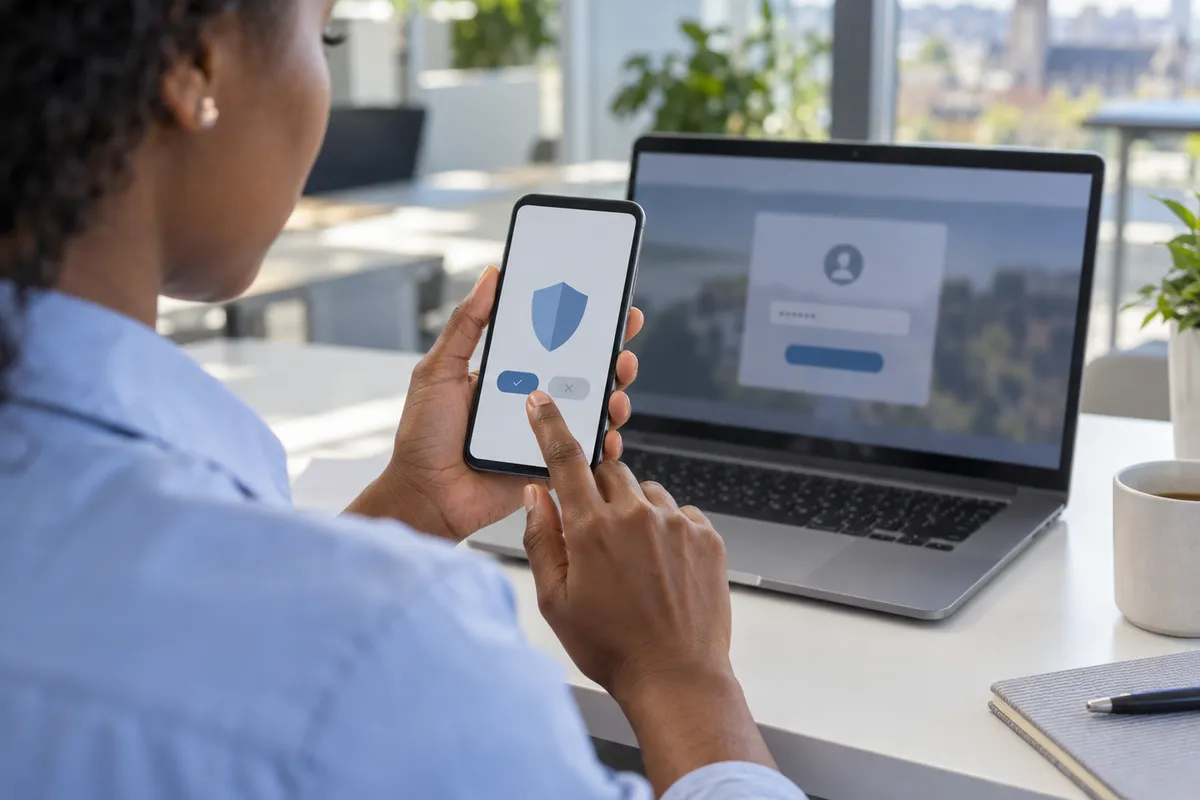
MFA adds a check after the password, such as a phone confirmation, code or security key. This means that even if a password is stolen, it is not enough to access the account.
Request additional confirmation before allowing access to accounts and applications.
Use a mobile app, a code or a security key depending on the users and tools to protect.
Help each staff member activate MFA and understand confirmation requests.
Enable a user to regain access if they change or lose their phone.
An additional check protects Microsoft 365 accounts and applications connected to Microsoft Entra ID.
GVISION configures authentication methods and sign-in rules according to your users, needs and licences.

Cisco Duo secures access to applications, computers and remote connections with an additional check.
GVISION integrates the solution with your tools and defines suitable sign-in methods for each user.
A physical USB or NFC key, such as a YubiKey, confirms the user’s identity and offers stronger protection against phishing.
GVISION helps you choose compatible keys, configure them and plan access recovery.
Here are practical situations where an additional check can prevent unauthorised access.
A staff member receives a fake Microsoft 365 email and enters their address and password on a fraudulent page. The attacker obtains this information, but MFA asks for a second confirmation they do not have. The sign-in is blocked and the staff member can report the unusual request.
A user wants to access email, the VPN or a business application from home or while travelling. After entering their password, they confirm the sign-in from their phone or with a security key. Access is therefore restricted to the authorised person.
An executive, accounting or administrative account provides access to confidential data or allows important settings to be changed. MFA adds protection before each sensitive sign-in. A FIDO2 key can also be used for better resistance to phishing attempts.
GVISION analyses your access points, chooses suitable methods and supports your users during MFA deployment.
List users, administrators, applications and remote connections. Accounts providing access to sensitive data are prioritised.
Determine whether to use Microsoft Entra MFA, Cisco Duo, FIDO2 keys or several methods, depending on your tools, licences and users.
Start with a pilot group, configure sign-in methods and help each staff member activate and use MFA.
Define procedures for when a user loses or replaces their phone, forgets their security key or can no longer confirm their sign-in.
Points to clarify before getting started.
MFA asks for additional proof after the password, such as a phone confirmation or security key. A stolen password alone is therefore no longer enough to access the account.
Microsoft Entra MFA is particularly suited to Microsoft 365 environments and applications connected to Entra ID. Cisco Duo can protect different types of applications, computers and remote access. The choice depends on your tools, licences and needs.
MFA is recommended for all users. Administrative, executive and accounting accounts, and accounts accessing sensitive data, should be protected first.
No. Depending on the solution and applications used, verification can be performed with a business phone, a FIDO2 security key or another compatible method.
It is a physical USB or NFC key used to confirm a user’s identity. It offers stronger protection against phishing because it does not work on a fake sign-in page.
The old method must be disabled promptly. After verifying the user’s identity, a new method can be registered so they can safely regain access.
No. Codes received by SMS offer additional protection but remain more vulnerable. Authenticator apps are safer, while FIDO2 keys offer better resistance to phishing.
Talk to an expert to choose a suitable MFA solution and organise its deployment to your users.
