



Microsoft 365 · Collaboration · Belgium
Shared Microsoft 365 calendar: which solution should you choose in Belgium?
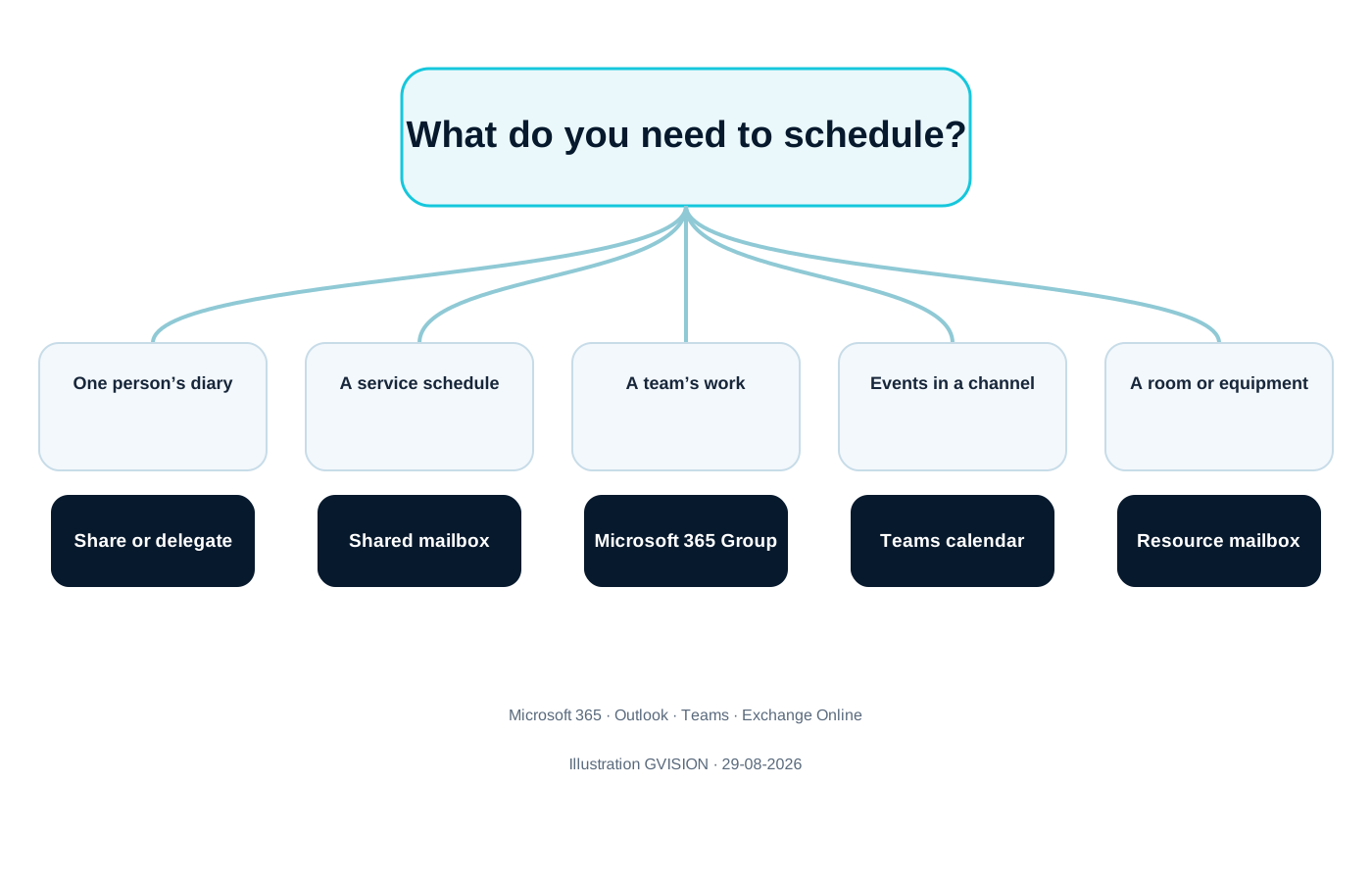
Shared Microsoft 365 calendar Belgium: an address such as [agenda@entreprise.be](mailto:agenda@entreprise.be) can conceal several architectures. A shared mailbox provides an Outlook schedule; a Microsoft 365 group organises a team; a channel displays events in Teams; a resource reserves a room or equipment. The right choice depends on what is being scheduled, permissions and mobile usage.

Why does Microsoft 365 offer several shared calendars?
Microsoft 365 does not provide a universal collective calendar because scheduling a team’s work, delegating an individual’s calendar and booking a room are three different needs.
In Exchange Online, each mailbox has a calendar. A shared mailbox therefore naturally provides a common calendar. A Microsoft 365 group also has a mailbox and calendar, but its purpose is broader: group membership provides access to several collaboration resources. Teams builds on these groups and adds channel meetings. Room and equipment mailboxes, finally, have a booking engine capable of automatically accepting or declining a request.
This diversity explains why the word calendar can lead to the wrong configuration. Creating a user account such as agenda@ solely to obtain a calendar often adds an unnecessary licence and password. Conversely, turning every schedule into a shared mailbox can multiply manual permissions and detach the calendar from the team that actually uses it.
Which Microsoft 365 calendar should you choose in thirty seconds?
Choose the shared mailbox for a central schedule, the group for a team, Teams for a channel, the resource for a bookable asset and personal sharing for named delegation.
A reception desk, secretarial service, duty rota, editorial calendar or shared schedule managed by a few people often corresponds to a shared mailbox. The calendar remains visible in Outlook and can use a functional address. If the same members also collaborate on conversations, files, tasks and meetings, a Microsoft 365 group avoids managing multiple parallel access lists.
For a team already working in Microsoft 365, the page GVISION Microsoft 365 describes the overall environment in which Outlook, Teams, SharePoint and OneDrive should be structured. This guide focuses on the calendar decision: it complements that page without replacing the tenant and usage framework.
When should you use a shared mailbox calendar?
A shared mailbox is the simplest choice when a service wants a functional address and a shared Outlook calendar without creating an additional sign-in account.
Microsoft states that a shared mailbox automatically creates a shared calendar. Authorised members can create, view and manage appointments from Outlook. The mailbox can also receive messages at an address such as agenda@, accueil@ or interventions@. This combination is useful when emails and scheduling describe the same process, for example requests received by a secretarial service and then placed in a shared calendar.
A shared mailbox is not an account that several people should access using the same password. Users sign in with their own identity and are then granted permissions. This distinction improves traceability and makes it possible to remove a person’s access without changing a secret known by the whole team. The calendar may appear automatically in Outlook depending on how permissions are assigned and which client is being used.
According to the Microsoft documentation updated on 13 March 2026, a shared mailbox can store up to 50 GB without its own licence. Users accessing it must have an Exchange Online licence. An additional licence becomes necessary in certain scenarios, including beyond 50 GB or for advanced features such as archiving or certain retention requirements.
When should you choose a Microsoft 365 group calendar?
A group calendar is suitable for a department, project or community whose members already share several Microsoft 365 resources.
When a Microsoft 365 group is created, Outlook associates a shared inbox, calendar and document library with it. Microsoft describes the group as the membership service that automatically grants access to these resources. Adding or removing a member therefore updates a coherent set instead of requiring the calendar, mailbox, SharePoint site and task plan to be managed separately.
The group calendar works well for project milestones, campaigns, department meetings, school deadlines or association events. It belongs to the collective rather than an individual. Members can find it in Outlook under Groups and display multiple calendars side by side. A meeting created in the calendar can invite the group or remain as a reference event without sending an invitation to every member.
What is a Microsoft Teams channel calendar used for?
The channel calendar is used to make events related to a channel visible in Teams; it does not always replace a shared Outlook calendar.
A channel meeting is posted in the channel feed with its summary. Members can discover it in the context of the associated conversations and documents. This is useful for a committee, project team or session schedule where the discussion needs to remain in the same place. The channel calendar therefore improves contextual visibility rather than creating a new booking logic.
Microsoft states that channel members do not automatically receive a direct invitation: people must be added when individual attendance or a response is expected. A member can also add the event to their personal calendar. This distinction prevents the assumption that an event displayed in Teams automatically blocks everyone’s availability.
The page GVISION Microsoft Teams covers the structure of teams, channels and governance. For calendars, the practical rule is simple: use the channel for channel events, the group for the associated collective calendar, and a shared mailbox when a service needs to manage a functional schedule primarily in Outlook.
Why should a room or piece of equipment have a resource mailbox?
A resource mailbox represents a bookable asset and can automatically process requests according to its availability and rules.
Microsoft recommends room and equipment mailboxes for booking a conference room, projector, vehicle, shared medical equipment or any other asset used during a time slot. Users add the resource to a meeting from Outlook and check its availability. Exchange can accept, decline or forward the request to a delegate.
Useful settings include automatic booking, booking horizon, maximum duration, conflicts, recurring meetings and delegates. A room can be added to a room list to make it easier to find. These features address a different question from that of a team calendar: here, the calendar ensures that a resource is not promised twice.
When should you simply share a user’s personal calendar?
Personal sharing is appropriate when an individual delegates access to or management of their own calendar, not when a service wants to create a collective asset.
An executive can give an assistant permission to view details, create meetings or respond on their behalf depending on the level of delegation. A colleague may share only their availability. The advantage is consistency: appointments remain in their owner’s calendar and correctly contribute to their free/busy information.
Shared mailbox, 365 group, Teams, resource or personal calendar?
The best choice depends on what is being scheduled and on governance; no calendar type wins in every scenario.
| Criterion | Shared mailbox | Microsoft 365 group | Teams channel | Room/equipment | Personal calendar |
|---|---|---|---|---|---|
| Purpose | Functional schedule and shared address | Collaboration within an established team | Channel-related events | Booking an asset | Delegating an individual’s calendar |
| Member management | Dedicated Exchange permissions | Group membership | Team/channel members | Authorised users and delegates | Sharing by the owner or administrator |
| Outlook | Very suitable | Suitable under Groups | Meetings visible according to invitation | Suitable via Scheduling Assistant | Native |
| Teams | Less direct access | Linked to the Team when one exists | Very suitable | Bookable in meetings | User calendar |
| Permissions | Fine-grained but require administration | Collective; global read-only access may be possible | Follow the channel and meeting | Booking rules | Detailed delegation |
| Licence | Usually no dedicated licence up to 50 GB; licensed users | Depends on members’ licences | Depends on Teams/Microsoft 365 | Usually no dedicated licence up to 50 GB | User licence |
| Main limitation | Second access list to maintain | Fewer fine-grained roles per member | Does not automatically invite all members | Reserved for assets and locations | Depends on an individual |
| Best choice according to the need | Reception, duty rota, editorial calendar | Project, department, association | Channel meetings and sessions | Room, vehicle, equipment | Executive assistant, delegation |
What permissions and governance rules should be defined?
A reliable shared calendar has identified owners, minimum roles, maintained membership and periodic access reviews.
Distinguish between people who can read, create, modify and delete. For a shared mailbox, full mailbox access, send permissions and calendar folder permissions do not address exactly the same need. Do not grant Full Access to an entire organisation if most people only need to view the schedule. Use appropriate calendar permissions and test the behaviour in the clients actually used.
Document the name, address, purpose, business owner, technical owner, members, guests, retention period and closure procedure. Add a quarterly or half-yearly review depending on risk. Departures and role changes should feed into this review; a membership list that is correct on the project date can become too broad after a few months.
The On 29 May 2026, Microsoft announced an automatic upgrade of Microsoft 365 shared calendars to its enhanced sharing platform from the end of May. No general administrative action is required, but Microsoft maintains a list of known issues for classic Outlook. Support procedures should therefore distinguish between permission configuration, client cache and synchronisation mechanisms.

How can you deploy a shared calendar without creating technical debt?
Deployment takes eight steps: clarify the use case, choose the right object, appoint owners, configure permissions, test clients, migrate, train and review.
- Describe in one sentence what is being scheduled and who decides whether an event is added.
- Choose between a person, shared mailbox, group, Teams channel or physical resource.
- Appoint at least one business owner and one technical owner; two owners for a group.
- Create the object with an address, name and description that are understandable in the three relevant languages.
- Assign minimum permissions and document the membership method or security groups used.
- Test classic Outlook, new Outlook, Outlook Web, Teams and mobile according to the actual device estate.
- Migrate future events, explain the old calendar in read-only mode and announce a cutover date.
- Schedule access reviews, offboarding, archiving and closure.
The pilot must cover normal actions and exceptions: creation, modification, deletion, recurring meetings, external invitations, private events, time zone changes and member departures. Check who appears as the organiser and which notifications are sent. The behaviour seen by the owner is not always the same as that seen by a basic reader.
Will the calendar work in Outlook, Teams and on mobile?
Compatibility depends on the type of calendar, the client and how permissions are assigned; it must be tested before general rollout.
Microsoft documents opening shared mailbox calendars in recent versions of Outlook, including Outlook mobile. An authorised user can add the shared mailbox in the Outlook mobile app. Group calendars are visible in Outlook under Groups. Teams exposes the personal calendar and channel events, but does not always present every shared calendar with the same usability as Outlook.
How can you share a calendar with external users without revealing too much?
Share the minimum level of information, favour named invitations and avoid permanently publishing a sensitive operational calendar.
Exchange Online sharing policies determine what can be sent to external users. Depending on the scenario, a recipient may see only availability, limited titles or more details. Feasibility also varies between personal, shared mailbox and group calendars. Testing with a representative external account is essential before announcing the service.
What mistakes occur most often?
Common mistakes include creating a licensed generic account, sharing a password, using a personal calendar and having no owner or access review.
- Creating agenda@ as a user with a password when a shared mailbox would be sufficient.
- Sharing the credentials of a generic account and losing traceability of actions.
- Using an employee’s calendar as the organisation’s official schedule.
- Creating a shared mailbox for a room without booking processing rules.
- Creating a Microsoft 365 group solely for its calendar, without governing its other resources.
- Assuming that a Teams channel event automatically invites all members.
- Granting Full Access to everyone when most only need read access.
- Forgetting Outlook mobile, guests, time zones and recurring meetings during testing.
- Keeping two calendars with the same name after migration.
- Providing neither a secondary owner, closure process nor access review.
Shared Microsoft 365 calendar Belgium: frequently asked questions
Is a licence required for an agenda@ address?
Not necessarily. A standard shared mailbox can generally operate without its own licence up to 50 GB, while users accessing it must be licensed for Exchange Online. Advanced features or additional storage may require a licence. Always check the exact scenario.
Can you have only a calendar without an email mailbox?
In Exchange Online, the calendar belongs to a mailbox. The shared mailbox can be used mainly for its calendar without its address being communicated as a mail channel. For a room or piece of equipment, use a resource mailbox. A group also provides a mailbox and calendar.
What is the difference between a shared mailbox and a Microsoft 365 group?
A shared mailbox is centred on a functional address, its messages and calendar, with Exchange permissions. A group manages membership that also provides access to a calendar, group mailbox, document library and potentially Teams and Planner.
Is a Teams calendar visible in Outlook?
Teams events rely on Exchange, but the experience varies between personal, group and channel calendars. A channel meeting can be added to a personal calendar; members do not automatically receive a direct invitation. Test the desired journey in the clients being used.
How can you prevent all group members from modifying the calendar?
Microsoft documents an option that allows the group calendar to be made read-only for all members, while owners retain editing rights. This setting does not allow only certain members to be made read-only. For more granular permissions, reassess the architecture.
Can a shared calendar be shared with external users?
Yes in certain scenarios, depending on the calendar type and Exchange sharing or guest access policies. Limit the level of detail, test with an external account and avoid publishing sensitive information or a permanent link without governance.
How can you book a room without double-booking?
Create a room mailbox, enable request processing and define conflicts, booking horizon, duration and delegates. Users then add the room to the meeting from Scheduling Assistant. A simple shared mailbox does not automatically provide these rules.
Shared Microsoft 365 calendar Belgium: an architecture that will withstand change
GVISION can analyse your Outlook and Teams usage, create the right type of mailbox or group, configure permissions, document governance and support users. If your calendars are duplicated or no one knows who administers them, have your Microsoft 365 organisation structured by GVISION.